Property table
A Property table shows statistical information on all the properties of an object. This table is read-only. Use the grouping options in the view to easily organize and view the properties.
Open a Property table by right-clicking on an object in the JewelExplorer and selecting Properties > Property Table from the context menu.
The Property table can display the properties of not just individual items, but also multiple items of the same type (all wells, tri-meshes, marker sets, for example). To do this, select multiple items in the JewelExplorer, right-click on one of them and select Property Table. The view now shows all the properties of all the objects you selected.
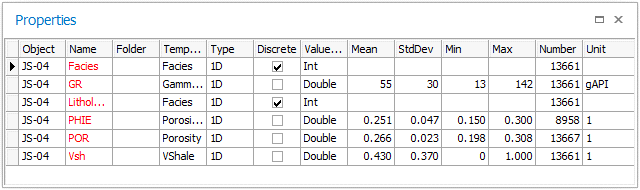
Properties for a single wellbore click to enlarge
The Property table provides the following:
Folder The name of the folder in which the property is stored in the JewelExplorer.
Template The property template.
Type The property type (e.g., 0D, 1D, 2D, 3D).
Discrete Indicates whether the property is discrete (checked) or continuous (unchecked).
Value type The property value type (integer, double, float, etc.).
Mean The statistical property mean value (based on a normal distribution).
StdDev The statistical property standard deviation value (based on a normal distribution).
Min The minimum value of the property.
Max The maximum value of the property.
Number The number of values available in the whole property.
Unit The property unit (feet, meters, bbl, etc.).